October Updates
📅 Requirements Schedule: See your material needs week by week The Planning page now includes a brand new Requirements Schedule. Your orders, open purchases and stock on hand come together on a single timeline. For every
📅 Requirements Schedule: See your material needs week by week
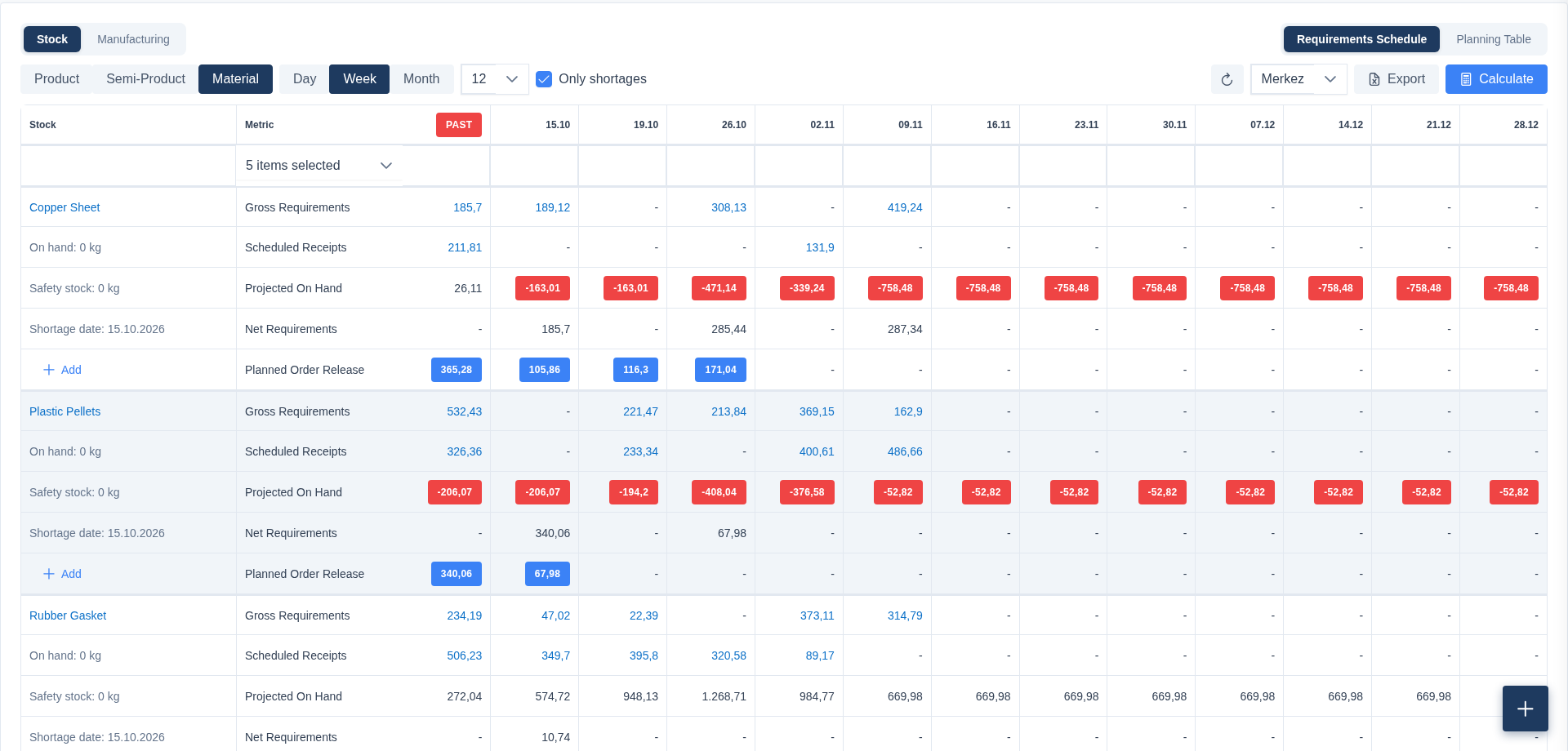
The Planning page now includes a brand new Requirements Schedule. Your orders, open purchases and stock on hand come together on a single timeline. For every product, semi-product and material, you can see at a glance how much you'll need in the coming weeks, how much is already on its way, and the exact day your stock will run short.
What you get
- Spot shortages early. Weeks where your stock won't be enough are highlighted in red, and the "Shortage date" tells you exactly when the problem starts.
- Stop guessing order quantities. Skala takes your lead times and safety stock into account and suggests how much to order each week, shown in the blue boxes.
- Act in one click. Use the Add button on any row to create a purchase or a work order straight from the suggested quantity.
- Plan on your own timeline. Switch between day, week and month views and choose how far ahead you want to look.
- Focus on what matters. Tick "Only shortages" and the list narrows down to the items that need your attention.

Curious where a number comes from? Just click the cell. You'll instantly see which order or purchase it belongs to, along with its date and quantity, and you can jump to that record in one click.
💡 Tip: The Export button sends the table to Excel with all its colors intact, ready for your weekly planning meeting. The classic view you're used to is still there under the Planning Table tab.
🚚 Extra Costs: Know the real cost of your products
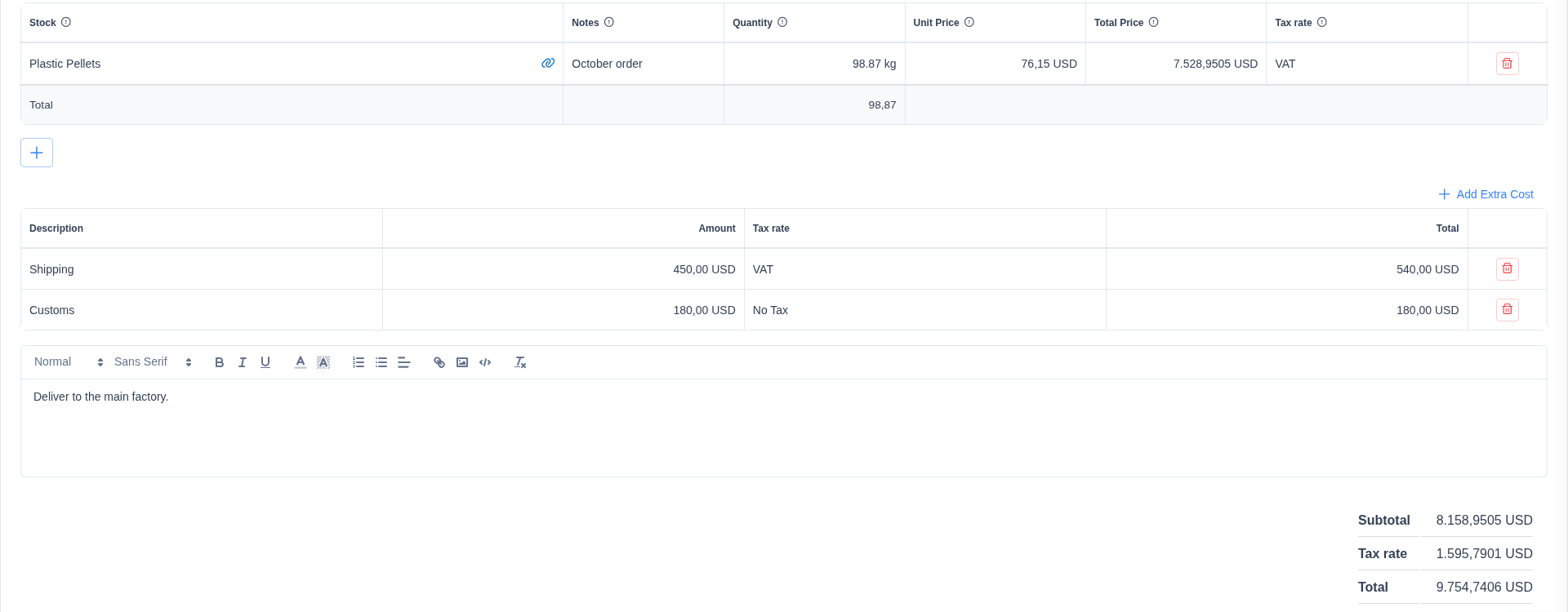
What you pay for a material is more than its price tag. Shipping, customs, insurance and commissions all add up. You can now add these directly to your purchases and sales orders.
How to use it
- On a purchase or order, click Add Extra Cost below the items.
- Enter a description and an amount, and pick a tax rate if needed.
- The subtotal, tax and total update instantly.
What you get
- True unit costs. Extra costs are spread across the items on the order in proportion to their value. Your stock costs and profitability reports now reflect every cent it took to get the goods to your door.
- Faster entry. Descriptions you've used before are suggested as you type. Type "Shipping" once and you're set.
- Line by line clarity. Each extra cost appears as its own row, with its tax and total tracked separately.
⚙️ Operation Types: Cost each operation the way it really works
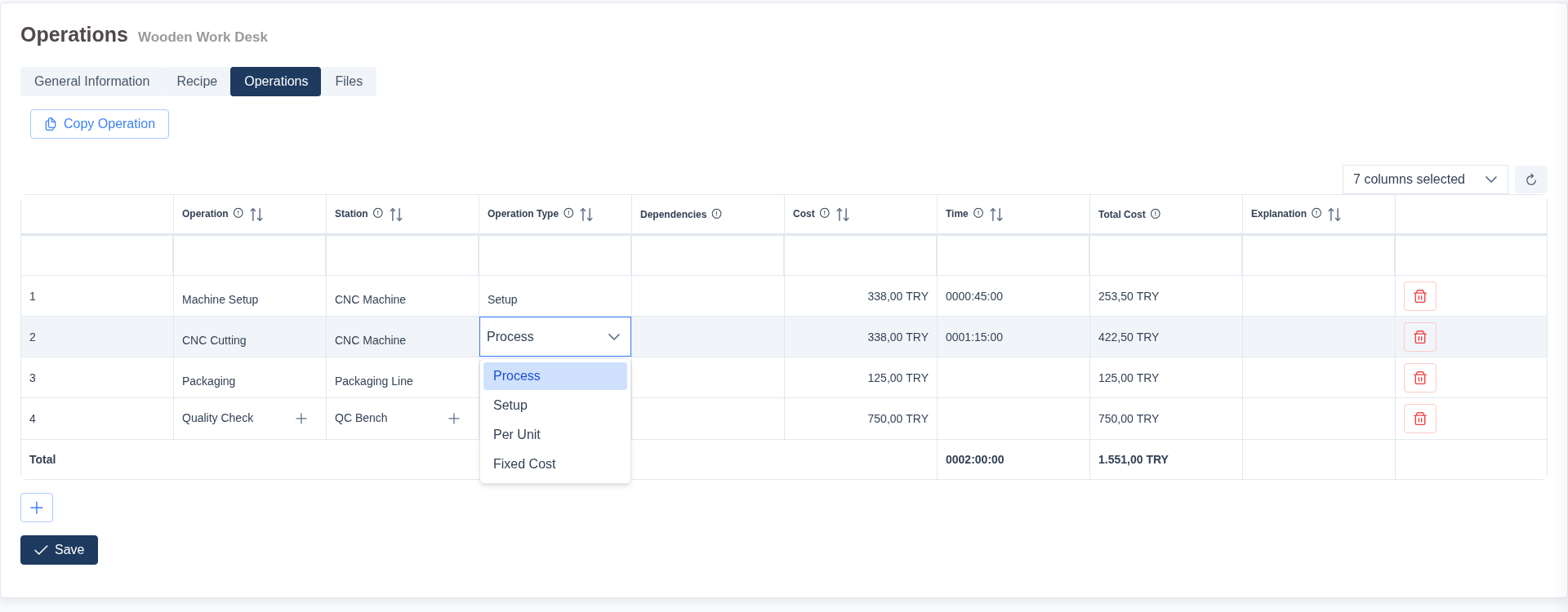
Not every operation costs money the same way. A machine setup takes the same time whatever the batch size, packaging is paid per piece, and a quality check has a flat fee. You can now give each operation an Operation Type that reflects this.
| Operation Type | When to use it | Planned cost |
|---|---|---|
| Process | Work that grows with the quantity produced (cutting, assembly) | Time × Quantity × Hourly cost |
| Setup | Preparation that doesn't depend on batch size (machine setup, tool change) | Time × Hourly cost |
| Per Unit | Work that is charged per piece (packaging, labeling) | Quantity × Unit cost |
| Fixed Cost | Work that costs the same every time (quality check, testing) | The fixed amount you enter |
What you get
- Costs that match reality. Setup time is no longer counted again for every unit, and flat fees no longer inflate with large batches.
- Compare planned and actual. For Process and Setup, the actual cost follows the time actually spent. For Per Unit, it follows the quantity actually produced. Fixed Cost always stays the same.
- Flexible work orders. Set the operation type once in the product's routing, or change it for a specific work order when you need to.
💡 Tip: Open the Operations tab on any product and pick a type from the Operation Type column. Your existing operations keep working as Process, so nothing changes until you decide it should.
🔑 API Key: Connect Skala to the rest of your tools
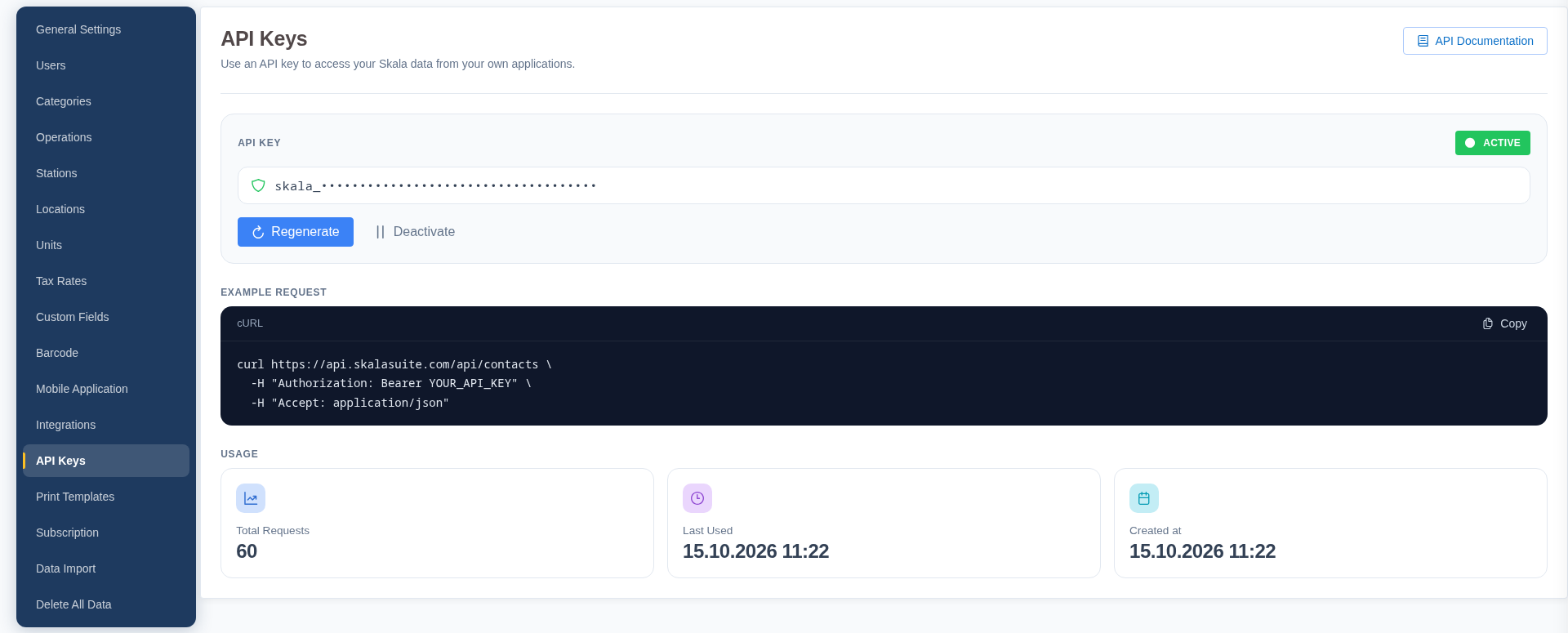
Your online store, your accounting software, your reporting dashboard or an app your team built in house can all now securely access your Skala data. Create your own key in seconds from Settings > API Keys.
What you can do
- Create your key in one click and share it with the tool you want to connect or with your development team.
- Stay in control. Pause the key at any time with Deactivate and turn it back on with Activate. If you think a key has been exposed, use Regenerate to replace it and instantly shut out the old one.
- Keep an eye on usage. Total requests and last used time are shown on the same page, so you always know your connections are working.
- Get started with a guide. The API Documentation button gathers everything your team needs in one place.
🔒 For your security: Your full key is shown only once, right after it's created. Copy it right away and keep it somewhere safe.