How to Use the Purchase Screen?
Updated: 2 min read
In the Buy section of the horizontal menu, all the purchases we have made are listed.
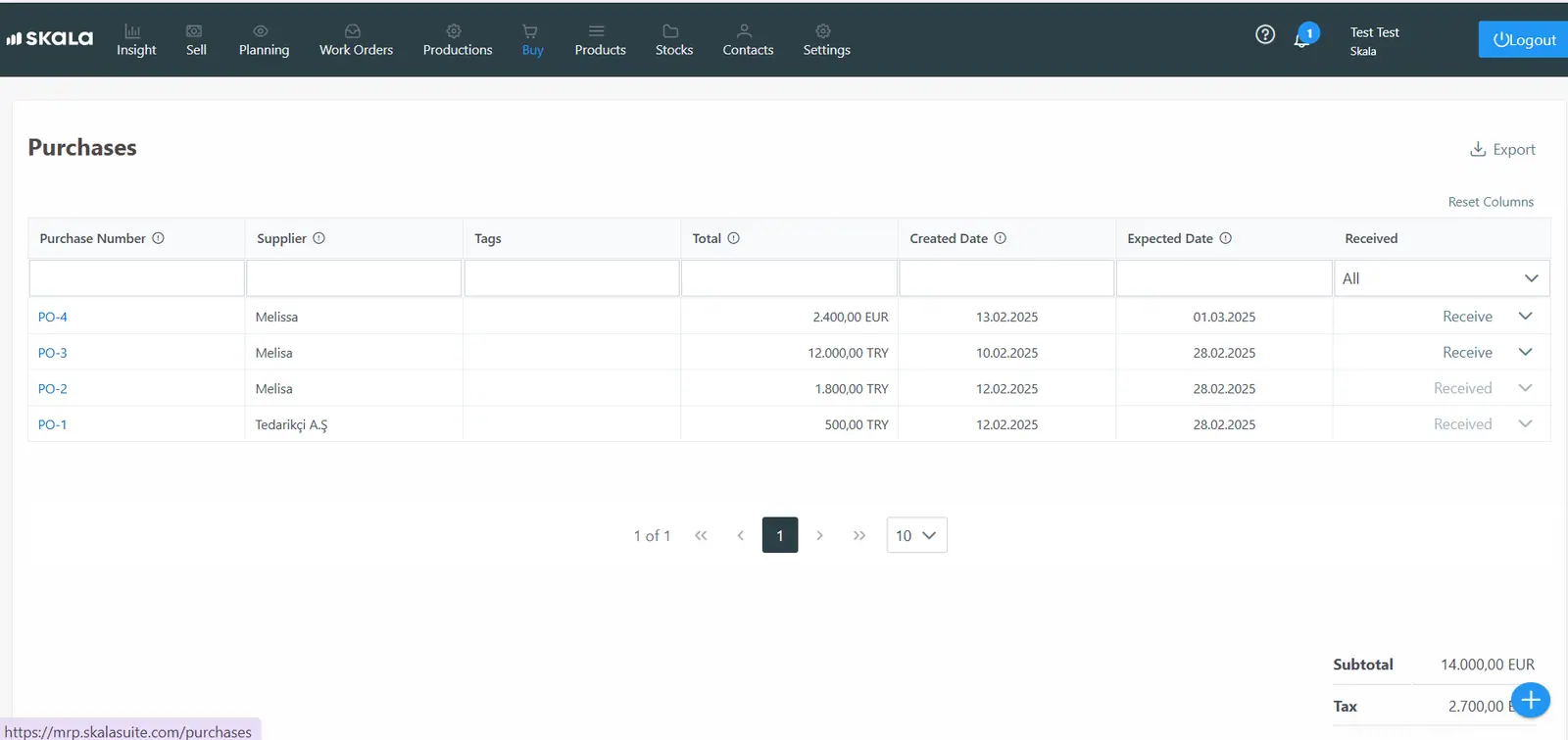
The tracking of details such as delivery status, customer information, creation date, and expected completion date of our purchases can be done through this screen. We can also receive the purchases we want to deliver from this screen.
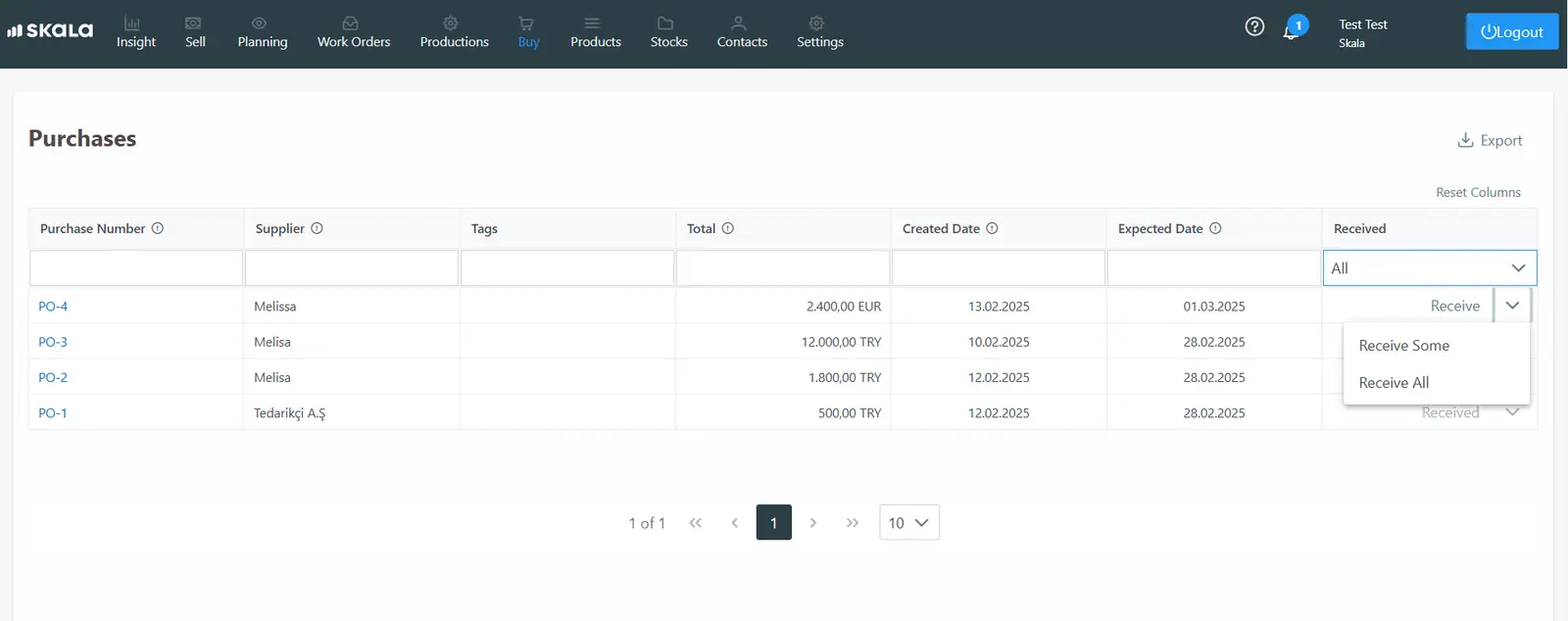
By clicking the arrow next to the “Receive” button, you can choose either “Receive Some” or “Receive All”. If “Receive All” is selected, the entire quantity in the purchase order will be transferred to stock. If “Receive Some” is selected, only the received quantity will be added to stock, and the purchase order will remain open.
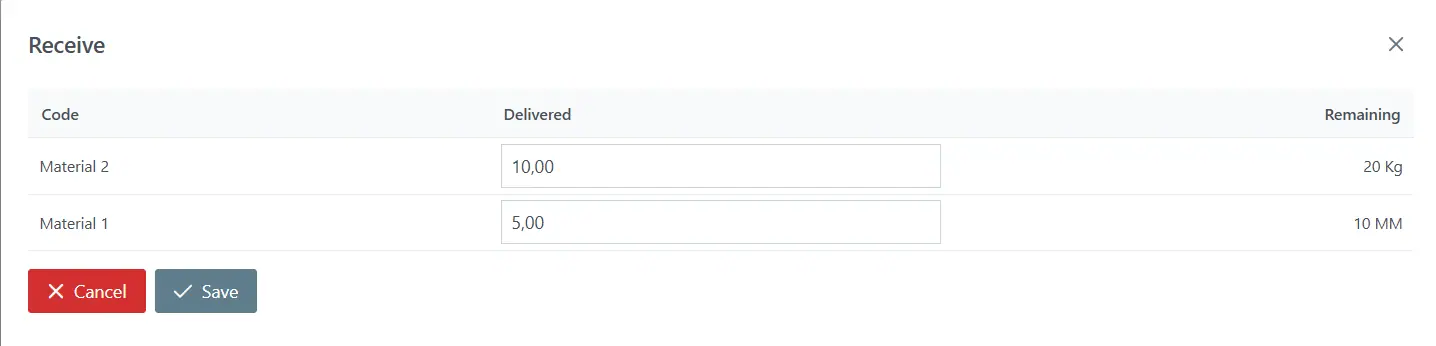
Later, when the remaining quantity is to be received, the screen will show how much quantity is left.
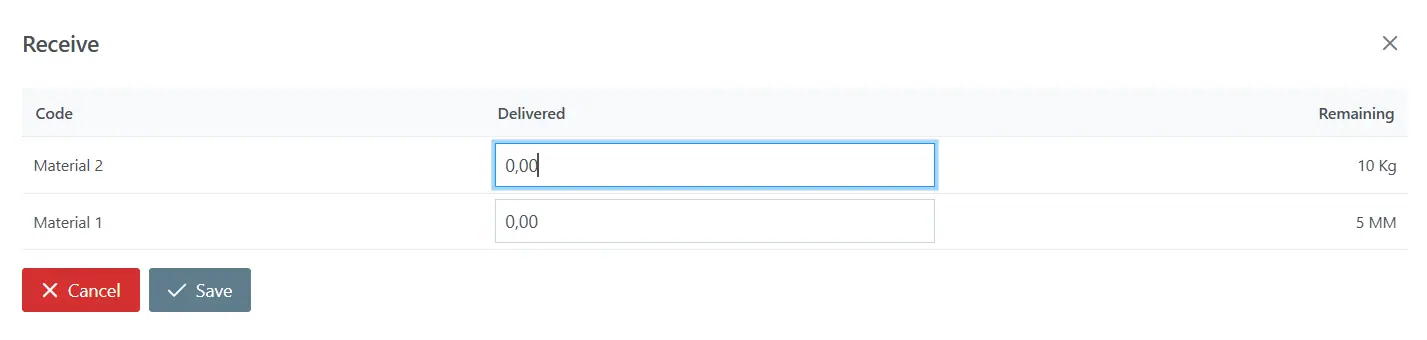
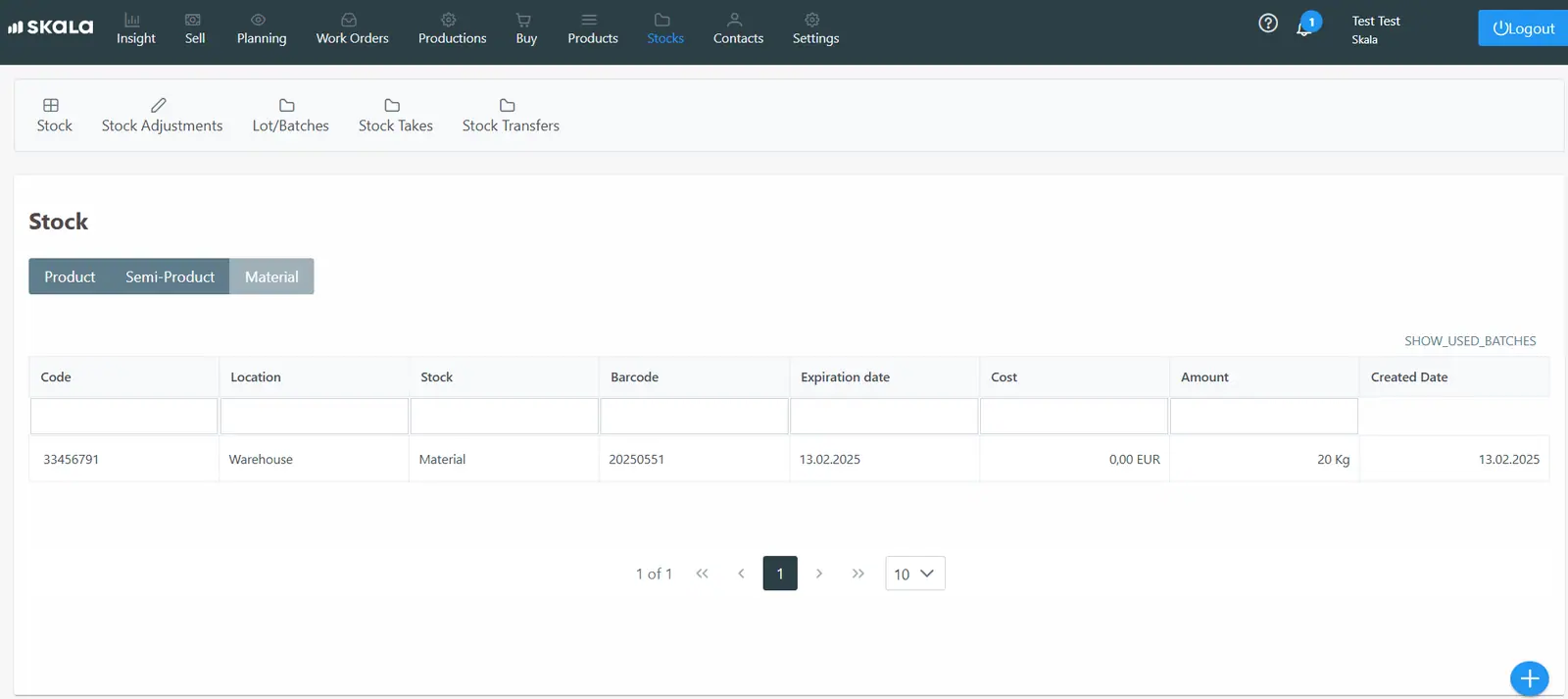
Once the entire order is received, the purchase will be updated as “received,” and the received quantity will be updated in the stock.If the purchased stock has batch-based inventory tracking, the batch number and barcode can also be entered during the receiving stage.
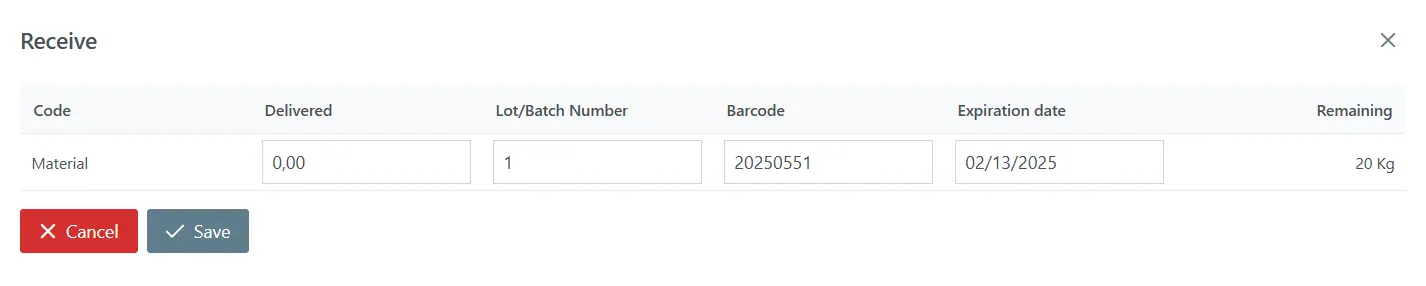
For batch-based stocks, a detailed list can also be accessed in the batches section of the inventory screen.