
Create Purchases: Fast and Easy with Skala
Updated: 2 min read
When making a purchase in Skala, click the plus button at the bottom right and select “Purchase.” The screen that opens allows you to create purchase details.
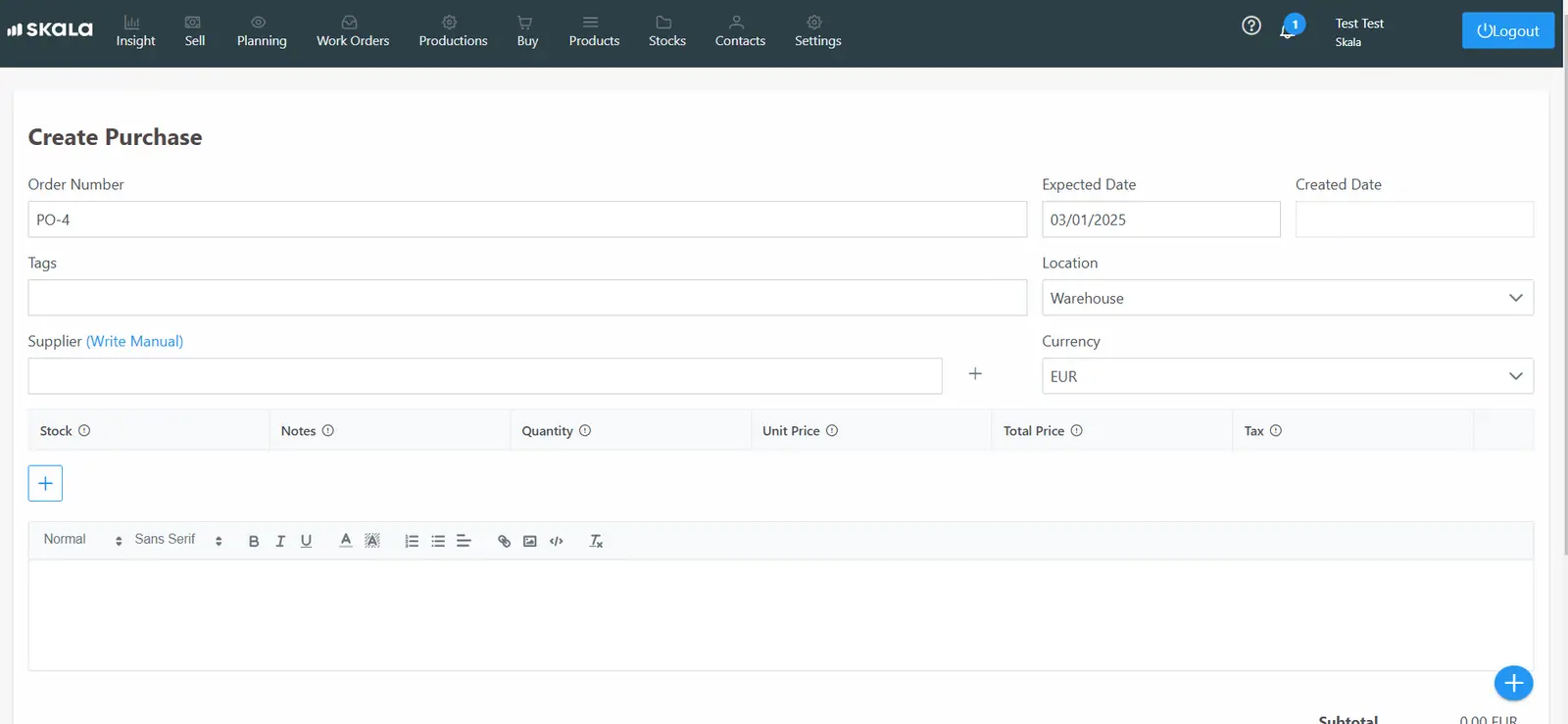
The expected completion date, location, and currency fields can be changed specifically for the purchase. The supplier’s name is entered in the Supplier section. If the supplier is not registered in the system, it can be quickly created from this screen using the plus button. Then, by clicking the plus button under the stock section, the raw materials/semi-finished products/products to be purchased are added.
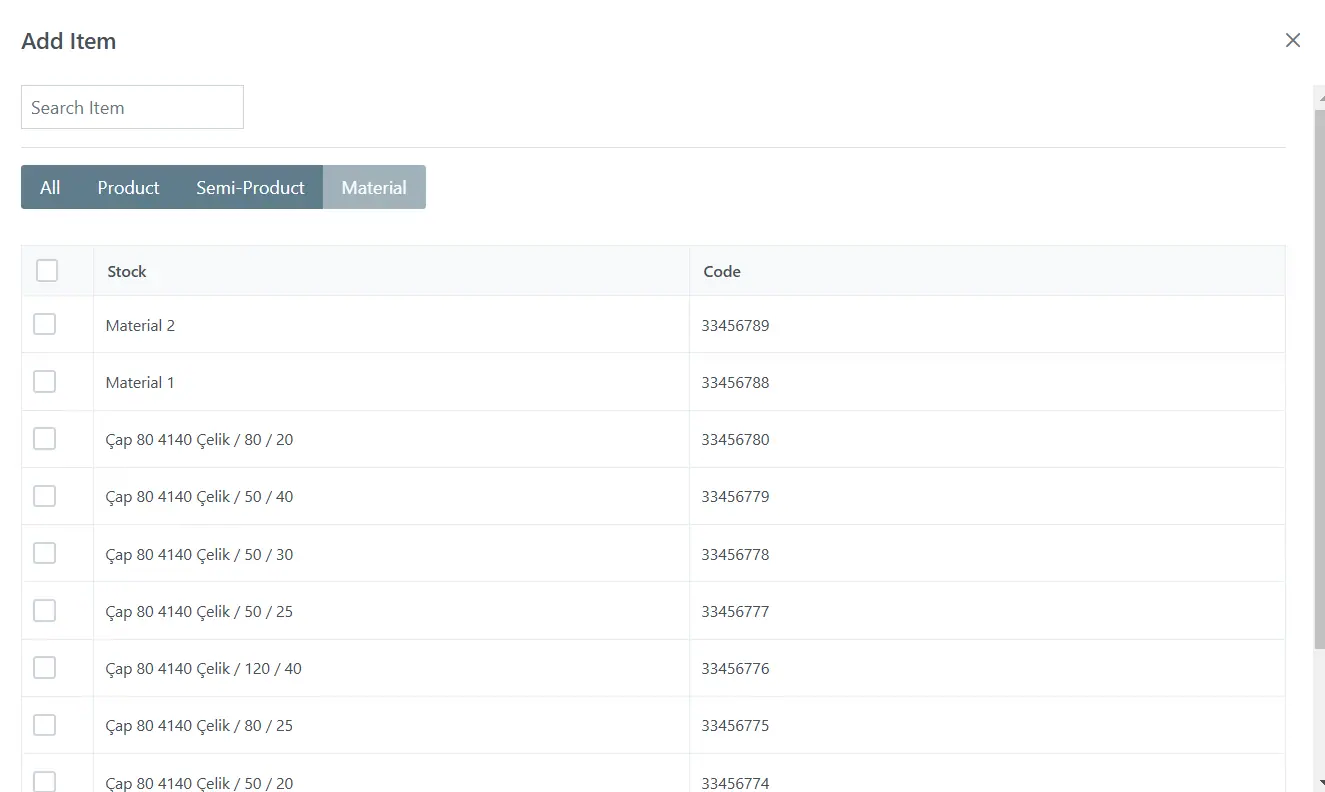
After the products are added, the quantity and unit price information can be modified.
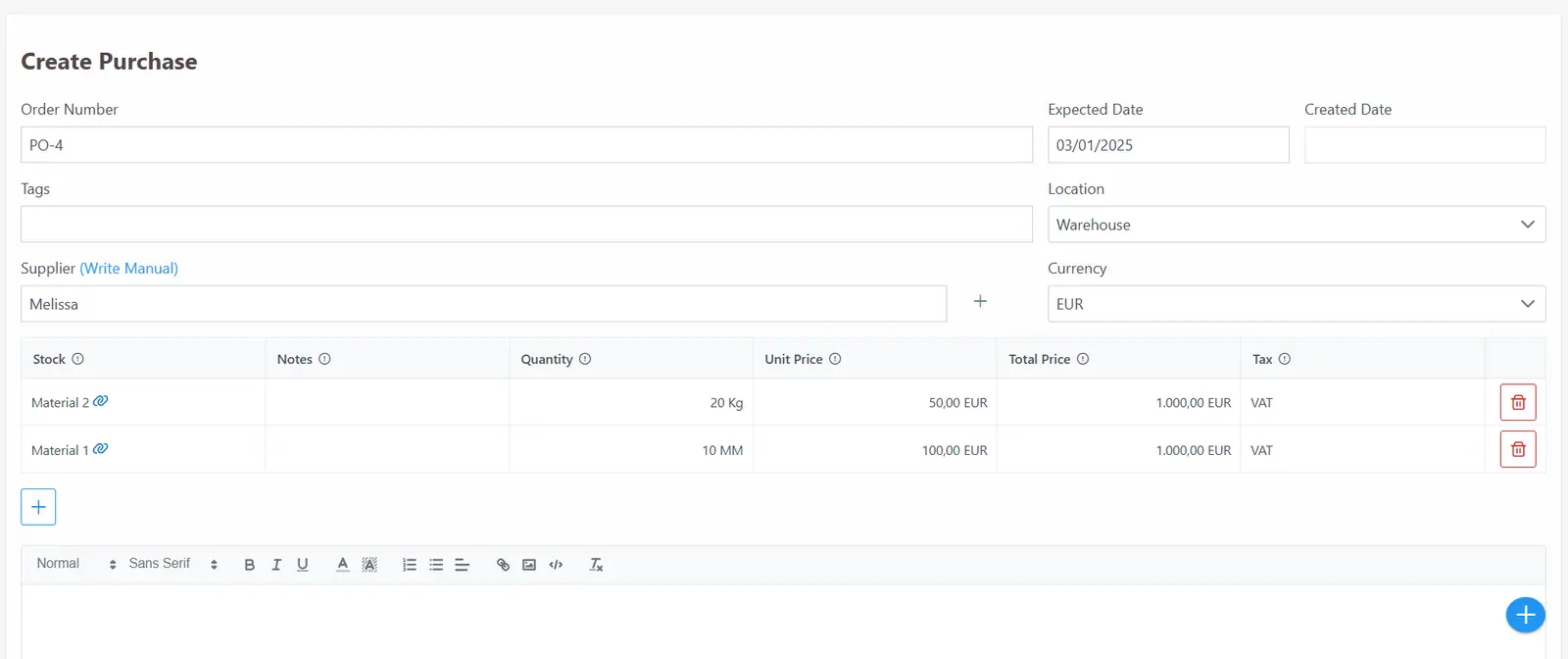
After the purchase is saved, the system will ask if the recipes and costs of the materials purchased should be recalculated. If we select “Yes,” the products using the purchased raw materials will have their costs updated. For example, if Raw Material 1 is in the recipe of Product A and we have created a purchase for Raw Material 1, the cost of Product A will be recalculated using the purchased price of Raw Material 1. If we select “No,” Product A will not be affected by this purchase.

This feature is useful for updating costs whenever prices change. After the purchase is saved, the options for “Invoice,” “Receive,” “Files,” “Email,” and “Print” will appear at the top. We can quickly perform the receiving process using this button or go to the “Purchases” screen in the horizontal menu. From the “Files” section, we can add a PDF, image, or other related documents for this purchase. Using the “Email” button, we can create an email for this purchase.
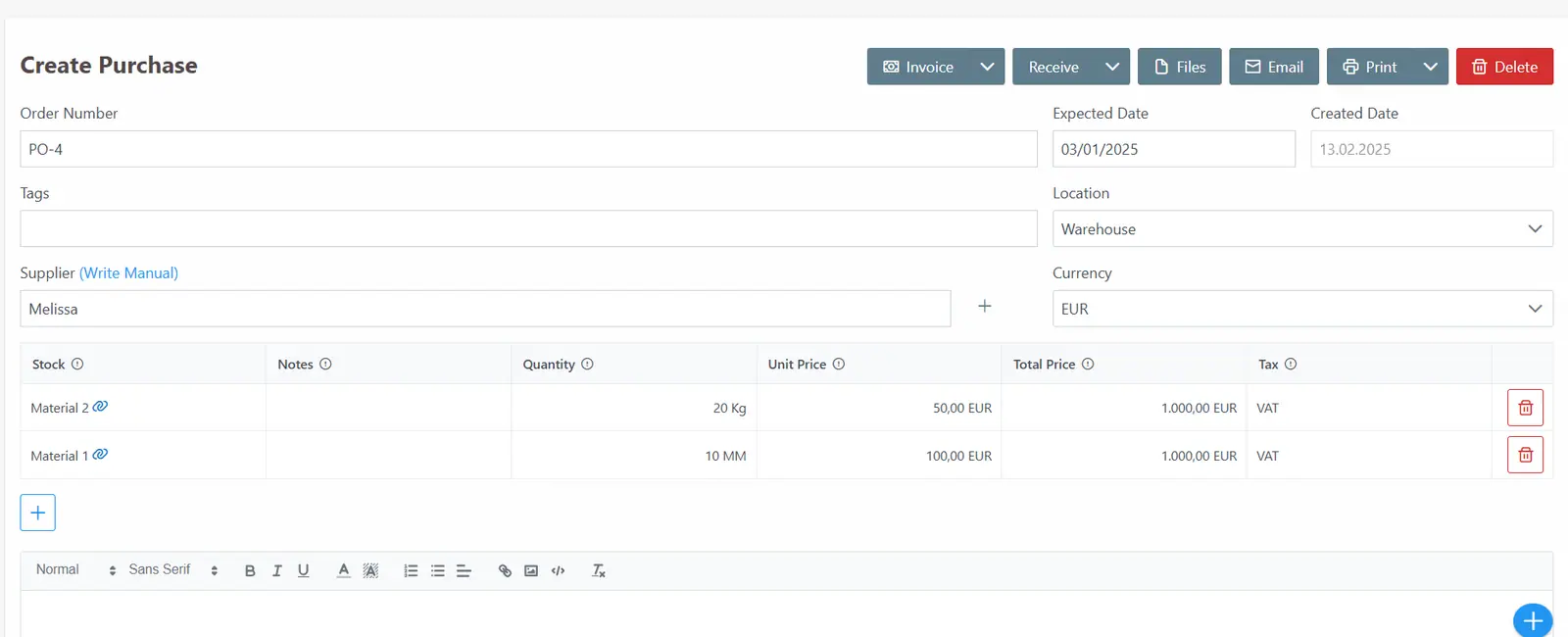
With the “Print” button, we can also print the purchase transaction we created.